Sending to Your Ereader
Learn how to send ebooks directly to your ereader.
Prerequisites
- A Kindle
- An account on Audiobookshelf
Your Kindle Settings
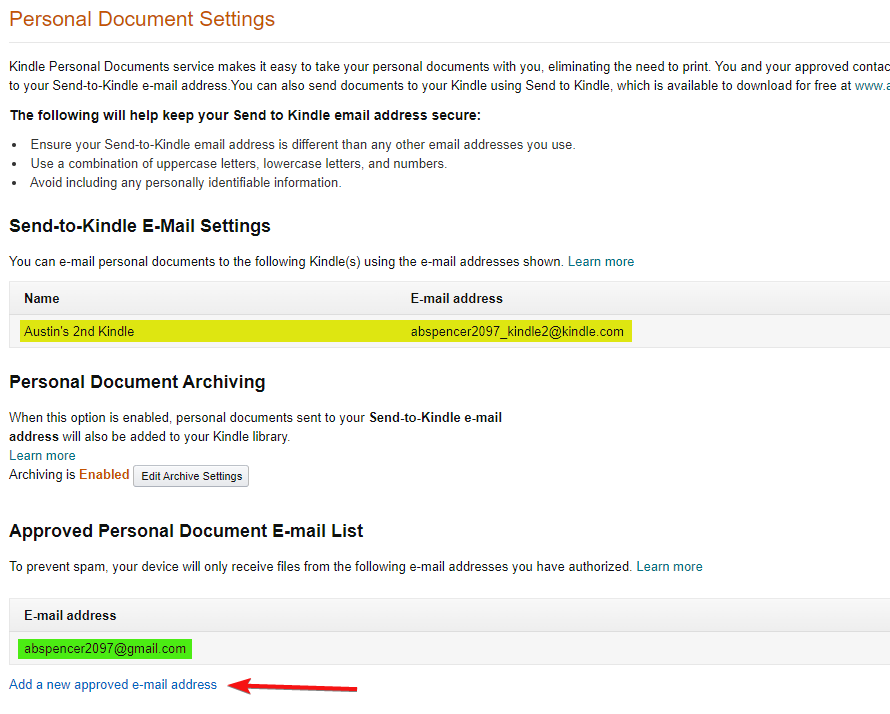
On Amazon, go to Manage Your Content & Devices > Preferences > Personal Document Settings
If you don’t add abspencer2097@gmail.com to your Approved Personal Document E-mail List you will not receive books through the send-to-kindle option.
Once there you should see a page like this:
Your Kindle Email
The first section (highlighted in yellow) under the Send-to-Kindle E-Mail Settings shows you your Kindle devices and the email for each.
Approved E-Mail List
You can see the green highlighted email of abspencer2097@gmail.com is within my approved email list. This is required in order for the Bookshelf webapp to send books to your Kindle!
If you don’t see abspencer2097@gmail.com already there, you can click the ‘Add a new approved e-mail address’ button and add it.
Audiobookshelf Process
Follow the steps below to get send to Kindle working properly within Audiobookshelf.
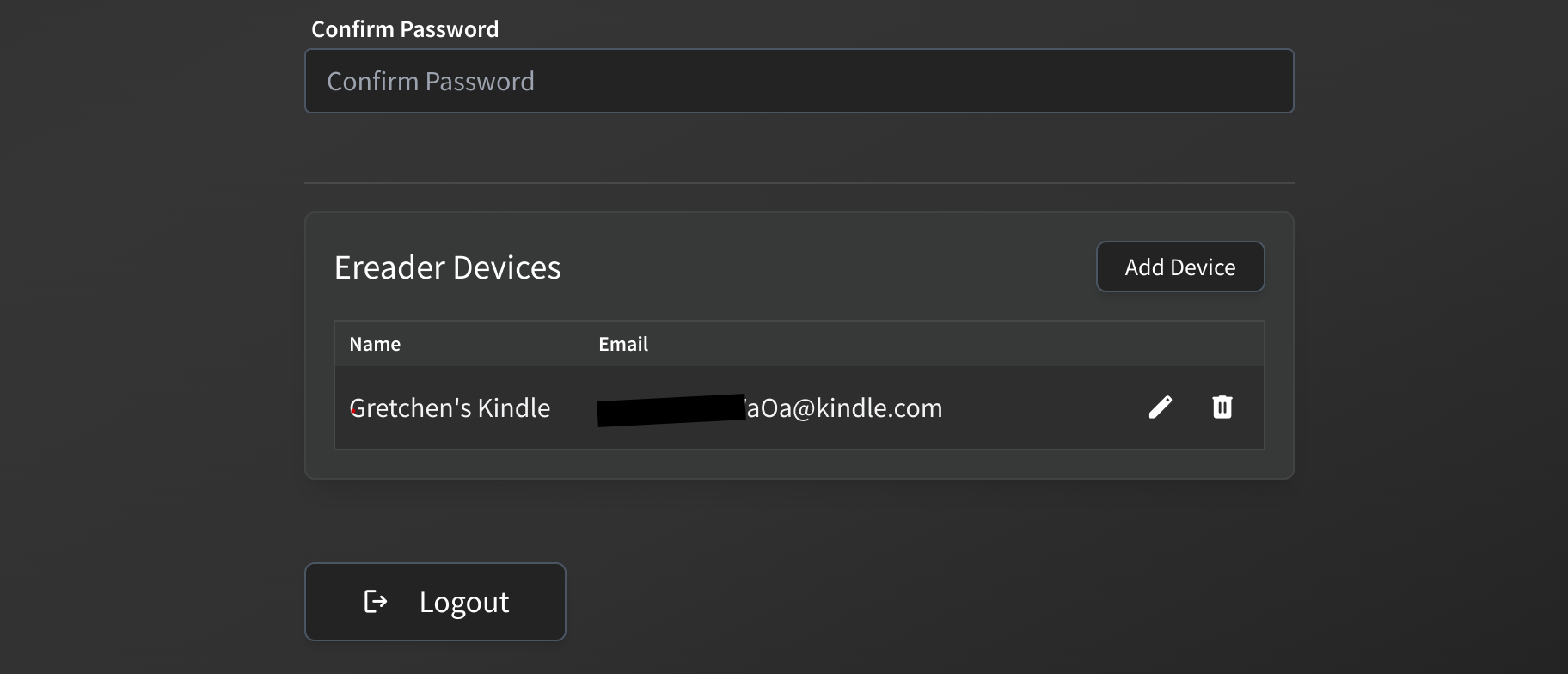
Add Your Kindle(s)
- Login to your Audiobookshelf account.
- Open your profile by clicking your username on the top right.
- Scroll to the bottom and you will see the option to create a new ereader.
Send Ebook to Kindle
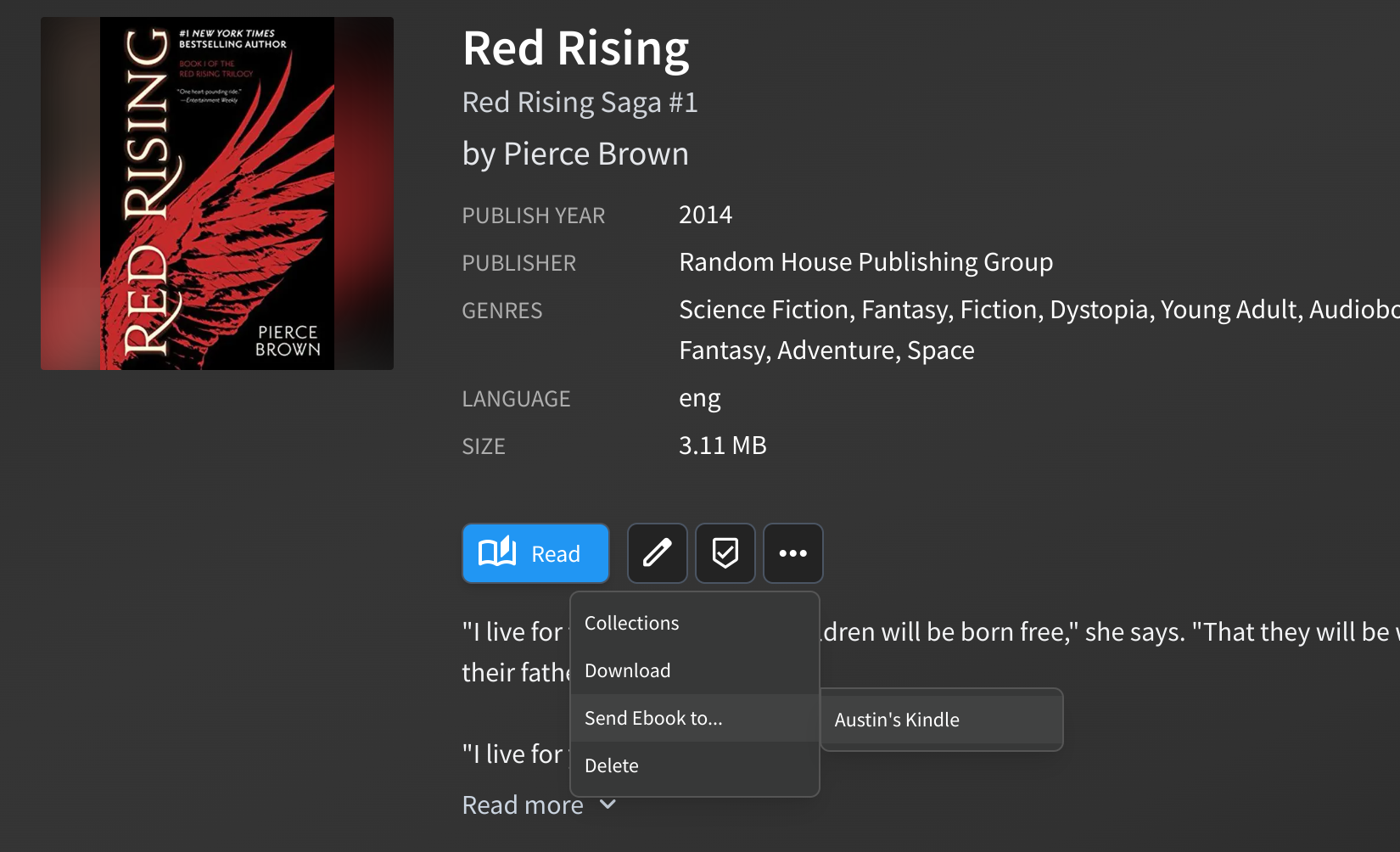
- Login to your Audiobookshelf account.
- Find the book you want added to your Kindle.
- Click the menu icon and choose the
Send Ebook to...option.